





Как вставить или прочитать формулы и функции в Excel на Java
Помимо записи данных, в Excel есть функции вычислений, которые делают анализ и обработку данных эффективными и простыми. В Excel есть два инструмента вычислений — формулы и функции. Формулы — это заданные пользователем формулы вычислений, а функции - предопределенные формулы. Пользователи могут либо вводить собственные формулы в ячейки, либо просто вызывать функции для вычислений. В этой статье мы расскажем, как вставлять или читать формулы и функции в рабочих книгах Excel с помощью Free Spire.XLS for Java.
- Вставка формул и функций в рабочий лист Excel на Java
- Чтение формул и функций из рабочего листа Excel на Java
Установка файла Free Spire.Xls.jar
Если вы создали
Maven-проект, вы можете легко импортировать jar в свое приложение, используя
следующие конфигурации. Для проектов, не использующих Maven, загрузите jar-файл
по этой
ссылке и добавьте его в качестве зависимости в свое приложение.
Spire.XLS for Java предоставляет метод
Worksheet.getCellRange().setFormula() для добавления формулы или функции в
определенную ячейку. В следующем фрагменте кода приведен пример. import com.spire.xls.*; public class insertFormulas { public static void main(String[] args) { //Create an object of Workbook Workbook workbook = new Workbook(); //Get the first worksheet Worksheet sheet = workbook.getWorksheets().get(0); //Declare two variables: currentRow、currentFormula int currentRow = 1; String currentFormula = null; //Set the column width sheet.setColumnWidth(1, 32); sheet.setColumnWidth(2, 16); //Write data in cells sheet.getCellRange(currentRow,1).setValue("Test data:"); sheet.getCellRange(currentRow,2).setNumberValue(1); sheet.getCellRange(currentRow,3).setNumberValue(2); sheet.getCellRange(currentRow,4).setNumberValue(3); sheet.getCellRange(currentRow,5).setNumberValue(4); sheet.getCellRange(currentRow,6).setNumberValue(5); //Write text in cells currentRow += 2; sheet.getCellRange(currentRow,1).setValue("Formulas") ; ; sheet.getCellRange(currentRow,2).setValue("result"); //Format cells CellRange range = sheet.getCellRange(currentRow,1,currentRow,2); range.getStyle().getFont().isBold(true); range.getStyle().setKnownColor(ExcelColors.LightGreen1); range.getStyle().setFillPattern(ExcelPatternType.Solid); range.getStyle().getBorders().getByBordersLineType(BordersLineType.EdgeBottom).setLineStyle(LineStyleType.Medium); //Arithmetic operation currentFormula = «=1/2+3*4»; sheet.getCellRange(++currentRow,1).setText("’"+ currentFormula); sheet.getCellRange(currentRow,2).setFormula(currentFormula); //Date function currentFormula = «=TODAY()»; sheet.getCellRange(++currentRow,1).setText("’"+currentFormula); sheet.getCellRange(currentRow,2).setFormula(currentFormula); sheet.getCellRange(currentRow,2).getStyle().setNumberFormat("YYYY/MM/DD"); //Time function currentFormula = «=NOW()»; sheet.getCellRange(++currentRow,1).setText("’"+currentFormula); sheet.getCellRange(currentRow,2).setFormula(currentFormula); sheet.getCellRange(currentRow,2).getStyle().setNumberFormat("H:MM AM/PM"); //IF function currentFormula = "=IF(B1=5,"Yes","No")"; sheet.getCellRange(++currentRow,1).setText("’"+currentFormula); sheet.getCellRange(currentRow,2).setFormula(currentFormula); //PI function currentFormula = «=PI()»; sheet.getCellRange(++currentRow,1).setText("’"+currentFormula); sheet.getCellRange(currentRow,2).setFormula(currentFormula); //Trigonometric function currentFormula = «=SIN(PI()/6)»; sheet.getCellRange(++currentRow,1).setText("’"+currentFormula); sheet.getCellRange(currentRow,2).setFormula(currentFormula); //Count function currentFormula = «=Count(B1:F1)»; sheet.getCellRange(++currentRow,1).setText("’"+currentFormula); sheet.getCellRange(currentRow,2).setFormula(currentFormula); //Maximum function currentFormula = «=MAX(B1:F1)»; sheet.getCellRange(++currentRow,1).setText("’"+currentFormula); sheet.getCellRange(currentRow,2).setFormula(currentFormula); //Average function currentFormula = «=AVERAGE(B1:F1)»; sheet.getCellRange(++currentRow,1).setText("’"+currentFormula); sheet.getCellRange(currentRow,2).setFormula(currentFormula); //Summation function currentFormula = «=SUM(B1:F1)»; sheet.getCellRange(++currentRow,1).setText("’"+currentFormula); sheet.getCellRange(currentRow,2).setFormula(currentFormula); //Save the Workbook workbook.saveToFile("InsertFormulas.xlsx",FileFormat.Version2013); } } Чтобы прочитать формулы
в рабочих листах Excel, мы можем использовать метод CellRange.hasFormula(),
чтобы определить, содержит ли ячейка формулу, а затем использовать метод
CellRange.getFormula(), чтобы получить формулу, если она есть. import com.spire.xls.CellRange; import com.spire.xls.Workbook; import com.spire.xls.Worksheet; public class readFormulas { public static void main(String[] args) { //Create an object of Workbook Workbook workbook = new Workbook(); //Load an Excel file workbook.loadFromFile("InsertFormulas.xlsx"); //Get the first worksheet Worksheet sheet = workbook.getWorksheets().get(0); //Loop through the cells within B1:B13 for (Object cell: sheet.getCellRange("B1:B13″) ) { CellRange cellRange = (CellRange)cell; //Detect if a cell has a formula if (cellRange.hasFormula()){ //Print out the formula String certainCell = String.format("Cell[%d, %d] has a formula: ",cellRange.getRow(),cellRange.getColumn()); System.out.println(certainCell + cellRange.getFormula()); } } } } В этой статье мы узнали,
как вставлять или читать формулы в Excel с помощью Spire.XLS for Java. Эта
библиотека поддерживает множество других функций, таких как: Преобразование
Excel в PDF в Java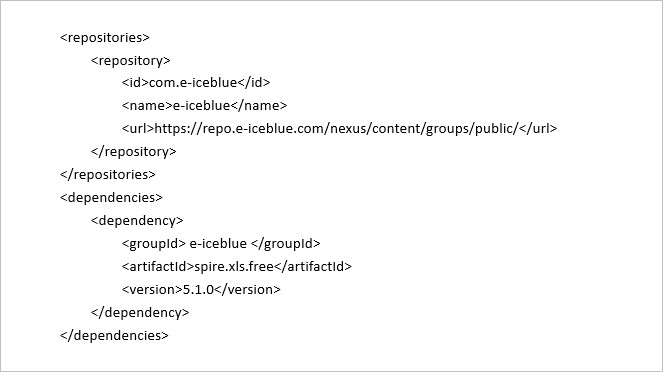
Вставка формул и функций в рабочий лист Excel на Java
Чтение формул и функций из рабочего листа Excel на Java
Заключение